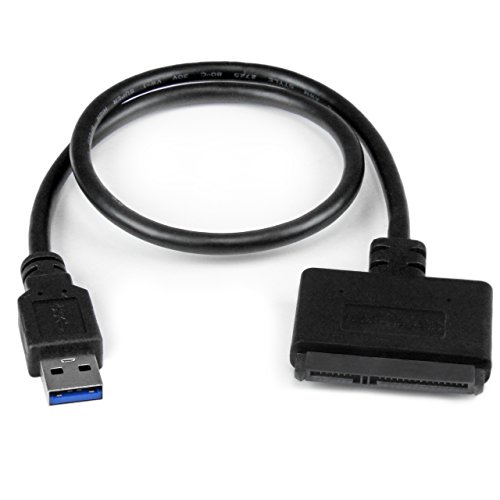


- QUICKLY ACCESS A SATA SSD OR HDD: Add drive space to your laptop by connecting to a SATA 2.5" SATA SSD or HDD using this SATA to USB cable--you can connect to an external drive to add storage, perform backups, create disk images, implement data recoveries, and transfer content to your laptop
- FAST TRANSFER SPEEDS WITH UASP: The SATA to USB adapter supports USB 3.0 data transfer speeds of 5Gbps. But, you can experience transfer speeds up to 70% faster than conventional USB 3.0, when connected to a computer that also supports UASP.
- CONNECT FROM ANYWHERE: The hard drive USB adapter is a portable solution that tucks away nicely in a laptop bag with no external power required
- SAVE TIME: The hard drive transfer cable lets you easily swap between drives with no need to install the drive inside an enclosure--just plug and play.
- RELIABILITY GUARANTEED: StarTech.com offers a competitive 2-year warranty plus lifetime support on this SATA to USB converter
-
Information
-
Twitter
-
Pinterest
-
Youtube
-
Facebook
Menk Maniz
works great under Linux with a 1TB drive
Ordered the "USB 3.0 <---> 2.5" SATA" adapter This works fine under Linux kernel 4.4, with a 1TB drive. Very happy with it, for I have another adapter (usb 2.0) that has a much lower drive size (something under 160GB) limitation. lsusb shows: Bus 007 Device 002: ID 174c:55aa ASMedia Technology Inc. ASM1051E SATA 6Gb/s bridge, ASM1053E SATA 6Gb/s bridge, ASM1153 SATA 3Gb/s bridge Device Descriptor: bLength 18 bDescriptorType 1 bcdUSB 3.00 bDeviceClass 0 (Defined at Interface level) bDeviceSubClass 0 bDeviceProtocol 0 bMaxPacketSize0 9 idVendor 0x174c ASMedia Technology Inc. idProduct 0x55aa ASM1051E SATA 6Gb/s bridge, ASM1053E SATA 6Gb/s bridge, ASM1153 SATA 3Gb/s bridge bcdDevice 1.00 iManufacturer 2 asmedia iProduct 3 ASMT1051 dmesg shows (with 1TB drive attached): [2063321.235052] usb 7-2: new SuperSpeed USB device number 2 using xhci_hcd [2063321.253093] usb 7-2: New USB device found, idVendor=174c, idProduct=55aa [2063321.253103] usb 7-2: New USB device strings: Mfr=2, Product=3, SerialNumber=1 [2063321.253108] usb 7-2: Product: ASMT1051 [2063321.253112] usb 7-2: Manufacturer: asmedia [2063321.253115] usb 7-2: SerialNumber: 12345679374A [2063321.265541] scsi host4: uas [2063321.266892] scsi 4:0:0:0: Direct-Access ASMT 2115 0 PQ: 0 ANSI: 6 [2063321.268640] sd 4:0:0:0: Attached scsi generic sg2 type 0 [2063321.387729] sd 4:0:0:0: [sdb] 1953525168 512-byte logical blocks: (1.00 TB/932 GiB) [2063321.387740] sd 4:0:0:0: [sdb] 4096-byte physical blocks [2063321.388180] sd 4:0:0:0: [sdb] Write Protect is off [2063321.388189] sd 4:0:0:0: [sdb] Mode Sense: 43 00 00 00 [2063321.388372] sd 4:0:0:0: [sdb] Write cache: enabled, read cache: enabled, doesn't support DPO or FUA [2063321.471482] sd 4:0:0:0: [sdb] Attached SCSI disk [2063322.552945] BTRFS: device label data devid 1 transid 10 /dev/sdb
Timothy Johnson
PC Technician appreciates this tool very much
This review is for the following item: StarTech USB 3.0 to 2.5" SATA III Hard Drive Adapter Cable w/ UASP - SATA to USB 3.0 Converter for SSD/HDD Startech makes some good equipment, and this USB 3.0 2.5 SATA III adapter fits my needs exactly. This was purchases on September 21, 2016. I bought this adapter with the intent to be able to access any 2.5" drive if I needed to do data transfers, and more. As I encounter many such drives in my profession, it has been invaluable on many an occasion. Cloning drives has never been easier, and grabbing old data is a breeze. My goal is to eventually get the USB-C 3.1 Gen 2 10Gbps adapter for 2.5" drives. Faster speeds means more efficient work, and my management always like better work. Anyway, this adapter is an excellent tool which never leaves my work bag. I highly recommend it.
Marina Egorova
It Works Like Magic
I bought this to clone my laptop HDD to my SSD. I have a USB docking station that I used for my desktop when I traded out HDDs, and now I use it to make my older internal HDD into an external drive. Well, thought i could use that to clone the laptop disks. No go, darn it. So I bought this cable believing it would not work...it's just a shrimpy cable. I was wrong. The laptop immediately recognized the SSD I wanted to be the clone. I have a Samsung SSD, but Samsung's Magician software wouldn't work, nor would Acronis. But I was able to use Macrium Reflect with no issues, and it was free. Since my new SSD was half the size of the HDD i was replacing, I just needed drag the small partitions over to the "clone" side of the screen when I used Macrium. Then, no issues. This cable was well worth the few bucks.
Robert A. Patterson
Saved Me from Replacing My Daughter's MacBook Pro (Late, 2011)!
My high school daughter had been complaining that her MacBook Pro (Late, 2011) was running very slow. She mainly uses it for school work and listening to music, but I could see her frustration with the "spinning beachball" every time she opened an application or was browsing the internet. After reading about the success many people were having with replacing the slow 5400RPM hard drive that came with the Mac with one of the newer SSD drives, I decided to do the upgrade. These were my steps: 1.) Buy a 500MB Samsung SSD Drive ($80) 2.) Buy this StarTech USB 3.0 to 2.5" SATA III Hard Drive adapter 3.) Download SuperDuper! for free to my daughter's mac. 4.) Connect new Samsung SSD Drive using the StarTech cable via USB port on Mac. 5.) Follow instructions on SuperDuper to clone original drive. 6.) Follow video instructions on YouTube to remove old drive and install new SSD Drive 7.) Reboot computer - DONE! This cable was perfect for cloning the Mac to the SSD. By the way, I also upgraded her 4GB of RAM to 8GB of RAM (another $54) since I already had the laptop opened. Very easy upgrade. NO MORE SPINNING BEACHBALL and it boots up much faster using the SSD drive. Here are just a few examples of how much faster the computer responds with the new SSD Drive: BOOT-UP (OLD HD): 2 MINUTES, 15 SECONDS -> NEW SSD: 47 SECONDS OPEN WORD (OLD HD): 1 MINUTE, 3 SECONDS -> NEW SSD: 5 SECONDS OPEN CHROME (OLD HD): 31 SECONDS -> NEW SSD: 3 SECONDS SHUTDOWN (OLD HD): 27 SECONDS -> NEW SSD: 6 SECONDS
Olabiyi Olugbenga Damilare
Try this before you pay $20-50 or more to a tech. It's easy to use.
After a disappointing experience with a local pc tech trying to retrieve files from a failed laptop drive, I decided to try this. The tech told me the drive was no good, he was able to save only a few files and none of the many photos. I used this cable to connect the drive to a new laptop - it showed up right away and after some searching I was able to find the missing files and photos. The documents copied to a new folder without issue. The photos were more work. Some were corrupted and the folder copy method stalled each time it ran into one. It required me to click either try again or skip before the copying would start again. In all, it took a couple of hours, but I retrieved everything of importance from the old drive using this cable. Great purchase. My guess is, the tech didn't want to put in the effort required to monitor the file retrieval process and only recovered what copied easily. I wish I'd tried this cable first. It would have saved me $50 to the tech. I'm also concerned about sensitive data saved on the old drive. Not knowing if I should trust the tech with what he might have seen pushed me to change my checking account and passwords. If I had bought this cable first I'd have saved money and a lot of work and worry. Try this first.
Apple Gabriel Cabading
Worked great, exceptional tech support, check your SSD's software and system bios settings
As the headline suggests, the cable is fine, check elsewhere if you run into an issue. And please, folks, this connects to a single USB port. USB power is limited to 500mA (USB 2.0) and 900mA (USB 3.0). You can't power a 3.5" HDD or an older 2.5" HDD with this cable, it's not the cable it is your computer's USB port. I've purchased several Startech products over the past several years. I like the quality and no-nonsense presentation. This cable has the added benefit over an older USB-SATA cable setup I had, in that it has 2 little led's to indicate data access (like on your computer). I bought this cable at the same time I purchased a new Samsung 500Gb 860 EVO SSD. I've done the laptop HDD to SSD clone process 6+ times. In the past, I've used a different USB-SATA cable and Samsung SSD's without a hitch. I like the the Samsung's because they're good and the cloning software is rock solid and a no brainer. When I hooked things up and used the latest version of Samsung's software, I had an issue with the software not recognizing the new SSD. Hmm, bad cable? bad SSD? I tried a different older SSD I had pulled from an earlier laptop upgrade and I could see it no problem in Win 10 explorer. Still nothing with the new SSD. So in one of the reviews of this product I saw the Startech tech support phone line. Lo and behold it (the number) worked and I was talking to an actual human tech support person in less than 3 minutes. Folks this is an $11 cable, I am impressed with this level of tech support. The tech person suggested I try to format it with drive manager in windows, which I did, while he was on the phone no less, and yes, I could format it and I could then see it in file manager and read/write files to the new SSD, so it is really, really unlikely to be the cable or a dud SSD, that leaves the Samsung software. This one phone call was really helpful and saved me from sending back the cable and the SSD as it would have been difficult to tell which was the culprit (neither in this case). I then did the old Google search and found the Samsung Magician software has a reputation for not seeing some of the newer versions of their SSDs. Further reading suggested that their Data Migration tool (which you use for cloning) didn't have the problem. After downloading the Data Migration software, I was able to see the new Samsung SSD and do the cloning. I really can't stress how big a time saver the support I got from Startech was. It wasn't their knowledge of Samsung's issues, but at least how to get to that point where I could establish it wasn't the SSD or cable that was the issue. Kudos to Startech and their tech support! One issue that was mentioned in the various support posts on the Samsung site (but I suspect is relevant to other newer SSDs), is you may want to check your bios setting for the HDD controller (SATA), mine was set to RAID, but the preferred is AHCI. I can't say whether this was part of the issue or not, but something to keep in mind. Hardware/software Dell Precision M4500 (circa 2011) i7 chipset Win 7 PRO, 64 bit -> cloning to Samsung 500 Gb 860 EVO SSD using Samsung Data Migration software (not Samsung Magician)
Willam Tonelli
Affordable, easy to use, works as advertised.
I had a toshiba laptop that was no longer turning on. All of the pictures I had taken of my son when he was a baby were on the laptop and not backed up, so I was definitely desperate for a way to retrieve the photos. After looking into a few professional services to recover my hard drive and deciding I didn't want to spend $200+, I discovered this option. This cord was very simple to use and worked like a charm! It basically turned the hard drive that I yanked out of my dead laptop into an external hard drive. I was able to get all of the images with sentimental value off, and decided to keep the hard drive itself as a backup just in case something like this happens again. In short, this product was so easy to use, worked as advertised, and is very affordable.
Jessica Blakeney
I'm Not a Techie and Conquered My Data Transfer in Record Time!!!!
Let's start by saying that I'm not a computer person when it comes to the mechanical aspects and what's inside. My old laptop got a virus which wiped out my OS. I couldn't even get the CD to run to overlay the OS and have hope of saving all my pictures, work files and house related data! My nephew (who IS good at this stuff), sent me the link to here and told me to buy this. I did. It came in a few days later and I waited about 2 weeks to attempt, what I thought would be, a nightmare! I decided to tackle it yesterday and after spending about 15 minutes taking the screws out of the old laptop and figuring out what was the hard drive, (and for those of you non techie ppl, it's very obvious when you get in there!!), I merely plugged one end into the old hard drive and plugged the other end into my new laptop and there it was!! I transferred all my files in less time than it took me to get the screws off the back of the old machine! Most of the other reviews went over my head, but if you just need to transfer your data from one hard drive to another, this product is golden!! Now I have all my files on my new laptop, but also have my old hard drive that I can use monthly to back up my new machine, using this cable!! I'm so smart! lol
Jacinda Lynn Walker
LIFE SAVING DEVICE .......thanks to youtube videos and AMAZON is the GREATEST in all the land!
Dumped a cup of coffee on my computer. I know what you're thinking; yes, I died a little inside! On my new Windows 10 all-in-one Dell touch screen (sale at Best Buy for just under $300) Plugged this into the old hard drive (very easy to find once I pried the HP Pavillion laptop open) Right click on the start button, click on disk management. For mine it's drive E.... Right click on drive E and click on open. Of course, it said I'm not the administrator but it opened anyway GUESS WHAT? I Clicked on control, clicked on all my files that were on my desktop and TRANSFERRED THEM! I might stand in front of the computer store..................... that wanted to charge me $60 to check the hard drive's viability and $120 to copy everything over PLUS $15 to buy their flash drive .............and just tell everyone about this!!!!!
Georgia Papathanasios Siemion
Great addition to a computer maintenance toolset. Recommended
My parents experienced a hardware failure with their old PC, so I decided to get them an Intel NUC (the one that only has M.2 storage). Usually I'd just hook up the old HD/SSD to a spare SATA port and transfer the data, but that wasn't going to be an option this time. I found an old 2.5/3.5" HDD dock, but it was only USB 2.0. A quick search yielded this item, supporting USB 3.0 AND available Prime 1-day! Packaging/Appearance There isn't much to the item, as it's only a cable... USB-A on one end, and SATA+SATA power on the other. It resembles a SAS connection, but it's not quite the same. The build quality seems adequate, and there didn't appear to be any fit or finish issues. Installation/Use There isn't a lot that can go wrong with a product like this... it either works, or it doesn't. As long as you stay under the current limits of a USB 3.x port (assuming you have it hooked up to a USB 3.x port), you should be fine. Please note that the device itself takes some power, so you'll want to factor that in. Generally speaking, you're fine for all SSDs, and all but a few edge case 2.5" magnetic HDDs. While this type of thing isn't meant to be used as a full-time storage interface, it performs ok. Ultimately you're limited by the USB interface - while the bus bandwidth is technically greater than 6Gbit/s SATA, you will find that the performance is significantly lower. I ran some ATTO benches to check SATA vs. USB->SATA, and it bore this out. Regardless, it's still fast... in my case, I was able to transfer about 240GB to the new PC in about 5 minutes. Large numbers of small files are a weak spot. I've used this without issue in Windows 10, Server 2016, and Linux. Depending on your BIOS you can even boot from it (though I'm not sure why you'd want to do that). Conclusion I regard a device like this as cheap insurance, since you never know when you'll need to recover some data. I would think that a normal use case might be transferring data from a laptop HDD to another laptop. I definitely think anyone who's considering this item should get one.