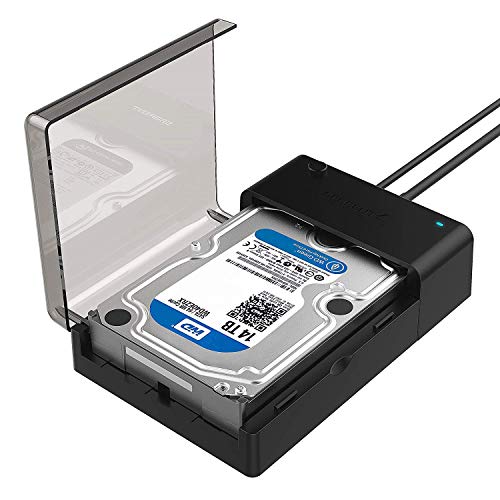



- Supports all 2.5 and 3.5-inch SATA drives
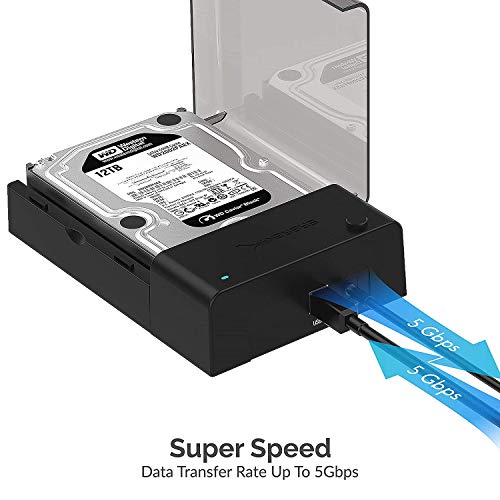
- Connects via SuperSpeed USB 3.0 (up to 10x as fast as USB 2.0).
- UASP (USB Attached SCSI Protocol) support for even faster performance. UASP requires UASP capable host system.
- Serial ATA bus up to 6Gbps Signal bandwidth for fast storage backups
- This Docking station comes with a free download of Acronis True Image for Sabrent software for easy cloning.
-
Information
-
Twitter
-
Pinterest
-
Youtube
-
Facebook
Walter Purdion
Best Buy removed the hard drive and gave it too ...
Our home computer suddenly crashed and I decided just to my a new one. Best Buy removed the hard drive and gave it too me. I had prevously backed up all my documents, pictures and music but my wife had not. I decided to order this item in hope of getting her documents and some programs that I used that were not backed up. I am of very average computer literacy. The hard drive easily slid in and was inserted into the external hard drive. You then simply using its USB connection, connect it to your new computer then turn on the power. My new computer used Windows 10 which was new to me. It took a few minutes to find what on windows 7 was called "my computer" to locate the external hard drive. Once I located it I could see all the users documents and programs and simply copied them to the new computer. To get into the old hard drive you needed to put in your password as administrator. I used the password to the old computer, but when rejected put in the password for the new computer which worked. For the price and speed just can't beat it. Highly recommend for those who dont regularly backup everything.
Youcef Aid
Faster than my internal Sata connection but take note if using AMD CPU
I give this Sabrent USB 3.0 enclosure 5 stars but those come with some caveats. First of all, the drive that was intended for this enclosure is a Seagate Barracuda 3TB drive that was formatted on my PC which has an AMD FX-8350 CPU and Gigabyte GA-990FXA-UD3 motherboard. After pulling the drive out of my PC and placing it in the Sabrent USB 3.0 enclosure I plugged it in and connected it to my PC's USB 3.0 port and while I heard the beeps that the system recognized a USB connection nothing ever showed up. A quick look in Disk Management showed the drive but with no drive letter and when right clicking to change the drive letter all options were grayed out except for Help. Searching for assistance online yielded massive results of useless information pertaining to other situations, finally I searched on "GPT Protective Partition" because that is what Disk Management said about this drive. I used diskpart to create a new partition and had to reformat my drive which means it wiped out all the data (which I had backed up on a NAS) and after all was said and done I finally had my Seagate 3TB drive running inside the Sabrent USB 3.0 enclosure. Why did I have to go through all that, I am not entirely certain, but in my research there seemed to be some issues with the AMD CPU/Motherboard and how it manages USB drives. The good news is this, I ran CrystalDiskMark speed tests on the Seagate drive both before (when directly connected to my Sata controller on my Gigabyte motherboard) and after (when installed in the Sabrent USB 3.0 enclosure and connected to a USB 3.0 port) and the results were not what I was expecting. While Sata II claims 6GB/s and USB 3.0 5GB/s in real world do we ever see those kinds of speeds, especially from spindle hard drives. I had always thought that a direct connection to a Sata cable off the motherboard would always yield the fastest results so was curious how the same drive would perform inside the Sabrent USB 3.0 and what I found was a big surprise: When connected direct to Sata on motherboard my sequential speeds were 142.0 MB/s Read and 133.6MB/s Write When connected to USB 3.0 in the Sabrent enclosure the sequential speeds were 160.4MB/s Read and 156.1MB/s Write! That is almost 13% faster on Read and 17% faster on Write. As far as longevity of the enclosure only time will tell, but the fact my drive is faster with this Sabrent USB 3.0 enclosure makes it well worth the cost. The enclosure itself appears to be well built out of plastic, you flip the cover open and the drive slips in and out without the need for screwing it down, as others have mentioned it may not be the best for a long term drive storage option, but for sitting on my desk, it should work just fine.
Zulam Rama
Great Enclosure--fast, reliable, convenient & easy-to-use - while not the best permanent enclosure, it's great for temporary use
This is a great product for when you need fast (but not constant) access to a variety of different SATA hard drives in which putting them in a permanent fixture would be kind of a pain due to constant swapping. This is a TRUE plug-and-play device, and it plays nice with multiple operating systems. With a USB 3 interface, this enclosure maintains high-sustained read/write speeds, which means less waiting for your data to copy over. However, this is NOT a good permanent drive for most Hard Disk Drives (HDDs) due to the sustained temperatures that can be generated, and the lack of active cooling devices. ---------- TERMS I will use a few abbreviations here... --HDD - Hard Disk Drive - that is, a hard drive that has a disk that physically spins rapidly, usually between 4,200-7,500 RPM --SSD - Solid State Drive - that is, a hard drive that uses flash memory like that used on USB flash drive (i.e., no moving parts) --SATA - Serial ATA - that is, the interface used to connect a hard drive to the computer internally or an enclosure externally --USB - Universal Serial Bus - the port used to connect this external drive to your computer & the most common computer port used today (there are three different generations: 1.1, 2.0, 3.0, each which offer increasingly faster data transfer speeds) ----------------------- EASE OF USAGE & ACCESSIBILITY This enclosure accepts both 3.5 inch and 2.5 inch hard drives, provided the drive uses a SATA interface (ex: if the hard drive uses IDE/PATA or SAS, it will not fit the SATA port on this enclosure.) Usage of this enclosure is simple. More or less, you lift up the flap on the enclosure, connect the hard drive to the SATA port, plug the USB cable (and, depending on the drive, power cable) into the unit, and plug it into the computer for fast-access plug and play. (Obviously, the way the hard drive is formatted/journaled will determine just how much you can do with it on a specific operating system.) Being capable of working with USB1.1, USB2, and USB3, this drive will work with a wide range of computers (both old and new), and it plays well with both Windows and OS X. While there are many USB 3 devices that do not deliver speeds as high as expected, this enclosure delivers excellent sustained read/write speeds (when paired with a higher speed hard drive, of course.) --------------------------------- LIMITATIONS & EXCESSIVE HEAT WITH CONSTANT HDD USAGE While this is great enclosure for intermittent usage and infrequent backups, it is NOT the best choice for constant usage, especially with the higher speed HDDs. The case does NOT seal out dust/debris, does not lock closed, does not give any sort of shock/impact damage protection, provides no magnetic shielding, and has no cooling system built-in. So especially with high-speed HDDs, it can get extremely hot. Heat can be a major catalyst of premature failure of spinning disk hard drives (mind you, not the biggest). An hour of usage with an older 10,000 RPM WD Raptor I have saw tremendous heat generation. And while that is perfectly fine for intermittent usage, this is too much heat for frequent or prolonged usage, and given this enclosure is mainly plastic, it just doesn't dissipate this heat all that well. So with higher RPM HDDs that you plan to use frequently/constantly, a dedicated enclosure with some shock protection and a cooling fan/heat sinks is probably a better choice. (With a SSD, none of the above is much of a concern.) ------------- OVERALL Overall, this is a great product. It manages to work well with a wide range of drives and on a wide range of systems. It's reasonably well built, versatile, and affordable. When you buy a new computer and need to transfer old data over, this enclosure offers a huge convenience over other methods. If you need an enclosure that offers you fast-access to numerous different 3.5 and 2.5 inch SATA hard drives, this is a great choice.
RnzNa Bhattarai
Did what it is suppose to do!
The OS on my desktop hard drive was corrupted and my computer wouldn't boot. I pulled the 3.5" hard drive and replaced it. Like I fool I hadn't backed up my data. Because it is a desktop 3.5" hard drive it required a separate power source to spin the drive and the standard USB data transfer cords would not work (despite what many of the vendors on here claim). I ordered the Sabrent docking station and as soon as I got it, I put the hard drive in, connected it to my computer and powered it on, said a little prayer, knocked on some wood and then checked to see if I could access the drive and the data. VICTORY! It is USB 3.0 so I was able to quickly transfer my data on to my new drive and get back to work. For around $25 it was well worth it because it did what it was suppose to do. Do I feel it is industrial strength and built to last - nope - and for the price I don't expect it to. If it only works just this once I am happy!
Valinte Jesza
Sabrent EC-DFLT works for adding a USB drive to a Nintendo Wii U
This is for the Sabrent EC-DFLT "USB 3.0 SATA Hard Drive Flat Docking Station". There exist plenty of positive reviews for this unit, along with a slew of angry 1 star ratings suggesting legit QC issues (which presumably are still a minority of units shipped). Make sure you're getting fulfillment from Amazon or a 3rd party vendor with a good reputation so that you can do a return/exchange if you get a bad one, and follow a sensible data backup and testing procedure before connecting this device to anything valuable. This dock was $22 when I got it, and includes a power supply. I have a ton of 2.5" hard drives (most in the 500GB range) pulled from laptops lying around so the quick swap is handy. I got this mainly to add external USB storage for a Nintendo Wii U. The most important suggestion I can make is to UPGRADE THE FIRMWARE on the dock. The data transfer rate to and from the Wii U was extremely slow before I did this. Because of Amazon's policy to not permit external links in reviews, I cannot link the EC-DFLT firmware upgrade URL, but you should be able to find it easy via a search engine. At the time I'm writing this, Sabrent provides a tool for Microsoft Windows and the latest firmware revision is 124.01.00.02. If the data transfer speed drops significantly after upgrading the firmware, power cycle (i.e. turn off power, wait a few moments, then turn power back on) both the Wii U and the dock. The power/data connectors in the dock provide plenty of stability for small and light 2.5" drives, and I experienced no problem with heat buildup. I would be wary of using this with a 3.5" drive where the drive might be jostled (e.g. children, cats) and also because with a 3.5" hdd heat dissipation could become an issue. You do not need to get a USB 2.0 cable. The included USB 3.0 cable provided by Sabrent works just fine, and plugging into one of the Wii U's USB 2.0 connectors enforces that the dock will fall back to USB 2.0. You also don't need to use a USB Y cable to provide adequate power since the EC-DFLT comes with an external 12V 2A transformer. Under normal circumstances, the Wii U will see that there's an external USB drive connected to it and will need to format that drive using it's own proprietary formatting before being able to store (or read) anything on that USB drive. The Wii U will not use more than 2TB of space, even if your drive is larger than this. You will not be able to read a Wii U formatted drive on any device aside from the Wii U that formatted the drive.
Sheila Lyn Matela Bueno
Very Fast Data Transfer Even Using An 8 Year-old Hard Drive
I did not fully know what to expect when I purchased this to house an old 400 GB drive that I was using to transfer data from my old Windows 7 PC to my new Windows 10. The Windows 7 box had USB 2.0 ports and took about an hour and a half to transfer data to this device. I don't remember how much data but I know it was less than 200 GB. The Windows 10 box has multiple USB 3.0 ports and took less than 15 minutes to download the same data. While running, the drive was pretty quiet and my only concern was that the hard drive got very warm (not hot) the first time I used this device. My thought was, "well, I will just leave the little flip up door open in the future so that it can dissipate heat" but found that it hasn't been warm since. I have left the PC running for a couple of days at a time and the drive stays reasonably warm even with the door closed. Overall, I am pleased with the speed and function of this drive enclosure. I am using a hard drive that is probably 8 years old so, I can only imagine that a new, faster, higher capacity hard drive would perform well in something like this. ***** Update ***** I bought another one of these about four months ago. I was having several problems with an old (7/8/9? year old) 2TB Western Digital MyBook external drive and finally decided to take it apart to see if I could just salvage the drive from its case. After filling up most of the 500 GB on my PS4, I purchased a second Sabrent device, inserted the 2 TB drive in it and used it as external storage for the PS4. This increased its drive space five times and allowed me to move all of our games and saved game data to it. Neither I nor my teenager have noticed a difference in performance of that system. Bear in mind that this will take up one of the PS4’s meager two USB ports and I have yet to hear of a USB hub that works to expand the number of USB ports AND works with an external drive. I have several more old SATA hard drives, of various sizes, that I pulled from old systems (don’t ask me why I kept them) and this Sabrent device allows me to use them all. After the Windows 7 to Windows 10 migration worked so well, I put a different drive into the Sabrent; connected it to my MAC Mini and migrated all user profiles (except Admin) to it. This worked like a champ and freed a lot of space on that systems’ 120GB internal drive. Q: Would I recommend the Sabrent 3.0 USB to SATA External Harddrive? A: I am tired of swapping it between my MACs and PCs so, I plan to get a 3rd one.
Christine Jay Taaca Damasco
It's pretty good...
Nothing really to dislike. Simple plug and play. Yes, it does warm up during use, but nothing extreme, IMO. If you leave open during use, it does help with the heat. However, I use mine basically to listen to my music and watch my movies. The heat that is caused by that is what I mentioned before, so i leave mine closed. That's like a few hours of use, as well. When not in use, it does stop spinning and will not produce heat. If you want it for gaming, I would suggest something better, but for listening to music, watching movies and file transfers and leaving it connected, this is it. Also, I turn my off when I turn off my PC for the day. A solid buy, in my book.
Mahnoor Hunjra
Good for quick access, maintenance, and storage drives that are kept in other enclosures.
This drive enclosure works well for my purposes. I have a nicer aluminum enclosure that I use for my permanent backup drive, but these are great for testing and formatting drives, or for quick work. They're also good for temporarily storing drives while you're working inside of a computer, without hassling with antistatic bags. This drive bay works with HDD (2.5, 3.5") and SSD drives. I've used it on Mac OS X (Sierra) without any issues. I don't use them as permanent vessels for my storage/backup drives for two reasons, the first being that the enclosure doesn't latch closed, the hinged door simply opens/closes, no kind of locking mechanism. The second reason is that the enclosure isn't 100% closed. The opposite side of the case (opposite of the connectors) has a gap roughly 1/2" in height and the width of a normal HDD, presumably for ventilation purposes. HDDs, especially during heavy use can generate a pretty significant amount of heat, so this ventilation is necessary to a degree, but having a completely open gap like that is less than desirable as it allows for foreign objects/material to enter the drive enclosure. This isn't a deal-breaker for me and didn't affect my overall rating, but either of these factors may not be ideal based on your intended purposes. If you'd like to see the gap that I'm referring to, it's on both models (with fan and without), you can see it clearly in the first two product pictures for the USB 3.0 model, and all seven of the product pictures for the USB 3.0 w/ fan model, particularly in the last picture for the fan model, it shows the unit closed. It's a good product overall and very reasonably priced. I don't think I'd recommend it for any kind of long-term/permanent backup storage solution, but it's great for quickly working with different drives, especially troubleshooting. If you are using HDDs (traditional hard disk drives with moving internal parts, found in laptop and desktop computers) you should get the model with the fan for the extra cooling. SSDs (solid state "flash" drives that have no moving parts) don't generate any significant amount of heat. SSD's tend to be fully enclosed and are reasonably safe to handle without much precautionary measures. Just be cautious plugging the drive in, as you shouldn't have to "force" it or use any extreme amount of pressure when connection it. When working with HDDs, I strongly recommend observing appropriate grounding protection and wearing (latex) gloves, as these drives generally have exposed parts that are sensitive to electric (static) shock, and the gloves help avoid getting the oils from your skin where it doesn't belong. To properly ground yourself when handling components, you should be using an antistatic wrist strap, and it's good practice to work over an antistatic mat, allowing you a safe environment to set down parts. The antistatic mat is connected to the antistatic wrist strap, which then needs to be properly grounded using a grounding wall plug, or if accessible, by clipping to the metal chassis of a properly grounded computer. Antistatic wrist strap:
Yami Nada
I've Used This Model For Years
I recently bought a spare when the price dropped but I'm no stranger to this docking bay. I've been using this exact same model to clone HDDs and SSDs since it was first released. The early models would not detect a hard drive of over 2TB but this has been resolved through a very simple firmware update. I keep a cloned copy of the OS drive on every PC I own. I update the cloned drives by cloning back to them again every few weeks to months. This is especially true if I have added an expensive program or did a major OS update. I've long lost count of how many PCs I've used this docking bay to clone a drive or simply copy files. It's been used on my PCs, my coworker's and friend's PCs. I have yet to find a PC that does not recognize and work well with this device. This includes Windows, MAC and all Linux distributions I have tried thus far. It's not fancy and it doesn't have a metal case. It's just a low priced, high quality docking station that has been totally problem free since day one. I own a few of the dual bay models with offline (Without a PC) cloning capabilities. I have never cloned a drive without a PC and probably never will. My system has worked perfectly for years so I will not be changing the way I clone drives. If I want to overwrite the drive in an existing PC I will boot the PC in question by a USB version of Hiren's Boot CD and overwrite the internal drive with either a Macrium Reflect image or from my cloned drive. Regardless if the internal drive is overwritten from an image stored on another drive or a cloned drive, this docking bay will do the job. Rare exceptions for me would be using Hiren's Boot CD and an image stored on a portable HDD to overwrite an internal drive. Keeping spare cloned drives and / or drive images may seem extreme to some people. You may not find it so strange if or when your OS drive fails, gets corrupted or overrun with malware. Over the past decade I've seen more than a few internal drives fail. With my system of backups, I can have any of my computers back up and running perfectly in a very short time. Lose your files ONCE and you will appreciate backups. I've been preaching the importance of backing up drives and files for several years. Few people listen UNTIL they lose everything from a failed drive. To anyone that has lost all their important files I'm sorry, if it happens a second time it is your own fault. It's a commonly known fact that all data storage media can and sometimes does fail. Be prepared and not sorry.
Emellyam Lynne
Works Perfectly in a Variety of Situations
Some hard drives are designed to fit neatly and precisely into the innards of a laptop or a desktop system. They are bare metal and open to touch, so these are not drives you would not want sitting on a desk or under a desk without protection. An external chassis docking system is the perfect solution for working with them when you need them outside your system. We do this type of activity fairly often. When family and friends are done with their computers, they often give the computers to us to empty out, refresh, and donate to a new cause. We’re also the go-to people when family members have drive failures and need help restoring them. Our external chassis stays in pretty much constant use. In essence this chassis provides the connectivity a drive needs to function in an environment outside the protective shell of your desktop and laptop. It has a power connector which plugs into a standard wall plug. It also has a data connector which in this case is USB 3.0. The combination of standard-use connectors makes the docking station easy to move around from system to system. I will note we do NOT recommend using this as a “permanent” solution if you want to keep this type of drive out on your desk for long term use. The setup is meant to be portable and easy-in, easy-out. So it’s great for repairing or cloning a drive. You’ll want something far sturdier if you want to keep a backup drive on your desk for months. That being said, this Sabrent chassis has worked like a charm for us. No problems at all. It’s helped us through a number of hard drive repairs and data transitions. Well recommended.