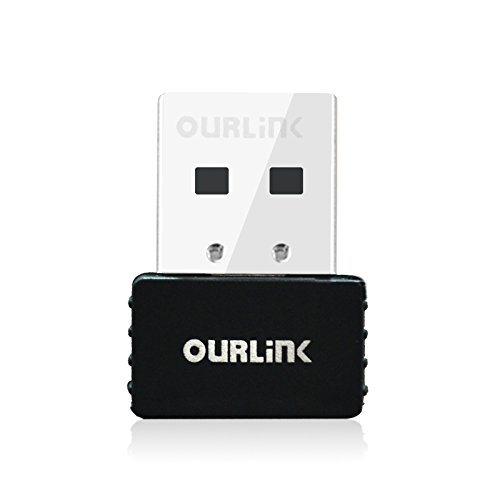


- Supports 802.11 ac standard - the next generation of Wi-Fi; Runs 3x faster than Wireless N adapters
- Dual band connections for lag-free Skype calls, HD video streaming and gaming (5GHz 433Mbps, 2.4GHz 150Mbps)
- SoftAP Mode to create a Wi-Fi hotspot for mobile devices whenever there is only wired Internet connection
- Supports Mac OS X 10.6-10.14 Sierra,Windows10/8.1/8/7/XP/Vista(32-bit and 64-bit); Backward Compatible with 802.11 a/b/g/n Products
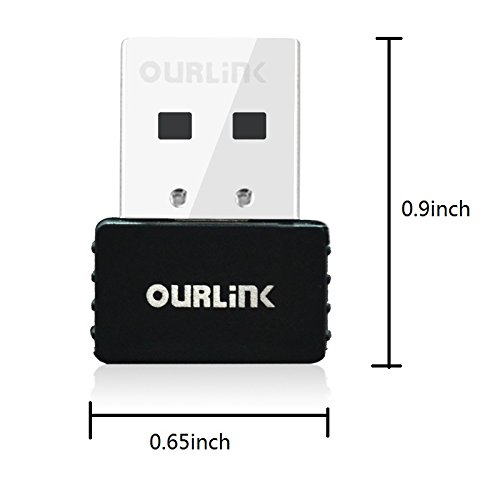
- Compact design for easy carrying; mini CD, update driver: https://goo.gl/NjH8r8
-
Information
-
Twitter
-
Pinterest
-
Youtube
-
Facebook
Mera Tumpang
Took me seconds to install. Runs like dream.
Opened the package, there was the adapter, an instruction booklet, and a full size DVD containing the driver, I assume. I have an i7 Sony Vaio 15" which is supposed to be a high-end laptop which set me back $1700 and change a few years ago. The laptop is a pain in the neck whenever WiFi is needed. It has only one 2.4 channel with a very weak antenna. I couldn't use it in my office about half of the time. Later on, I bought a dual band WiFi adapter which worked well. However, it is so big that I had to remove it every time I put my laptop into the bag. Without any surprise, I lost the adapter. Inserted the new WiFi adapter to a USB 3.0 port, I opened the booklet. Couldn't read it because my reading glasses was in another room. Then I took the DVD out from envelope. Before running it to install the driver, I checked whether my laptop sensed the new adapter. Voila! Not only it sensed, the adapter was working already, without even installing the driver. I ran internet speed test, got over 200 download while my plan is up to 200. That was a huge boost from originally 15 to 20 range. Also, since the adapter is so small, I no longer need to remove it before putting my laptop into a bag. A great convenience! Don't know about its durability yet. So far, very happy!
Anna Garcia
Works great at a great price, Highly Recommended
Using this product right now, getting 65Mbps down and 5+Mbps up on a wireless connection through my router upstairs. That's a little above the max speed I'm supposed to get from my ISP (Charter Spectrum). Just received it today and it works fine for me. It's a lot cheaper ($13 vs $34) than the USB Wifi dongle I bought from Wal-Mart (Netgear A6100 - which is going to be returned!), and it is actually smaller, so I'm not as worried about it getting damaged. Currently using on my 5Ghz connection. Would highly recommend this. Plugged it in, installed the drivers from the CD as recommended, rebooted the computer, selected my wifi network, entered the password, and voila! it works! No cons that I can think of (other than it not being free...j/k).
Serrina Randolph
Great to add wifi to a desktop, or 5ghz support to an older laptop. Don't expect top speed
We've been using this for several months now in my girlfriend's work laptop, and I bought one to try in my macbook pro 2012. Connecting to my desktop via my Airport Extreme router, it maxes out at ~200-220 mbps in both Windows 10 and MacOS Sierra. By comparison, the built-in 802.11n manages ~280-300 mbps in the same conditions (802.11ac, 5ghz only, transferring a single 2gb file). I believe that's because the broadcom 802.11n uses a 3x3 radio setup, while the Ourlink USB is 1x1. So, it's not the fastest 802.11ac adapter, but it's dead simple to use. It's automatically recognized in Windows 10, and once you install the driver package for MacOS (available on the Ourlink website), it's plug-and-play. Been reliable in my girlfriend's work laptop, and it'll be a good backup if the wifi in my desktop or macbook go kaput.
Angel Dimitrov
Small package delivers huge performance
This thing definitely works. It's nice and compact. I plan to leave it plugged it into my USB 2.0 port on my Windows 10 PC. It automatically installed and was working in seconds. I connected it to my wifi and saw MASSIVE improvement over my built in wifi which was starting to annoy me because it sometimes wouldn't connect. I used to get 40 Mbps (2.4 GHz), but now with this guy installed, I'm getting 180 Mbps (5 GHz)!! It's still not maxing out my bandwidth, but at least I can finally use most of the bandwidth I'm paying for without having to buy a new laptop. Plus I just want a solid connection that works. That was not always the case with my old adapter. I hope this one proves to be solid over time. We'll see.
Bhoii Jhonz
Saved Me From Buying a New Laptop
Although I've only used this WiFi adapter for about a week, it seems to be working perfectly! Exactly as described and saved me from having to buy a new laptop. I had a strange issue where my Lenovo Ideapad Y480 laptop had a built-in Wireless-N card that was having issues with my Linksys WRT1900AC Router. The router would eventually lose bandwidth at the 2.4 Ghz frequency where it brought my connection to like 2 or 3 Mbps download and 1 Mbps upload. I investigated replacing the built-in WiFi card on my laptop just to find that Lenovo has a Whitelist where only specific WiFi cards can be used on their laptops. That totally sucked because all the options only operated on the 2.4 Ghz frequency. I needed something that would allow me to use my Routers 5 Ghz frequency and give me a huge speed increase. Sure enough this adapter did the trick. I am now getting what I pay for from my ISP with 100 Mbps download and 10 Mbps upload. So I guess I won't look for a new laptop now :)
Jerre Neeley
I love this adapter!!!!
Truly plug-n-play.... Plugged it into my Win 10 laptop and within 45 seconds it was asking for my password to log into my 5Ghz network. Getting a solid 433.5 Mbps. It's amazing since this dongle is as small as a standard mouse dongle and it has a good range. Definitely worth every penny!
David Cote
Works better and faster than the built-in network card!!
After a Windows 10 upgrade from 8.1 in July, my 1st gen Lenovo Yoga started having problems with WiFi. The problem wasn't that it couldn't connect to WiFi because it connects easily and does not disconnect - but after a few minutes of startup, no sites would launch from any browser! Even the Microsoft Store techs couldn't solve the problem permanently. You'd need to run IP or Winsock reset constantly throughout the day, that it got counterproductive having to shut everything down and restart. After talking with a tech for a final option, he suggested using a new NIC card - or in my case something like the Ourlink WiFi dongle. I decided to try it and didn't hesitate to install it immediately as soon as it was delivered. First, the existing Realtek driver for the installed network card needed to be disabled (go to Device Manager, you'll see it, then disable it). Be sure to leave the driver enabled for the Ourlink dongle. I've had it for almost a week and I only had to run IP and Winsock reset once the entire time, not like before where I had to do it 3-4 times a day. So, that works for me! And there's something really important - sites run much faster on the old band and now I can access the 5G band too where it is screaming fast. It's like I have a new laptop! This dongle wasn't expensive, but it is worth 5 times the money! I'll never take it out of the USB port.
Amir Eslampanah
Awesome product for the money. I mean really awesome!
Updated your drivers if using windows 10, don't install the software. I'm getting amazing speed off of this thing! I have 150Mbps service and just clocked 176.53 on my speed test. After half a dozen tests, the worst I got was 141.06. Honestly, this thing is much better than I expected. I had an older adapter and was getting 45Mbps at best. I thought for the price, I'd give this a try since it had such good reviews. I switched out adapters and disabled my old one. I was only getting around 1.4Mpbs. I tried to update drivers, but no luck because it just clocked forever. I couldn't even connect to my router to mess with my settings. I was not happy! I then tried to install the software that came with it and I still had the same problem (horrible speeds). I uninstalled the software and thought maybe the drivers for the old adapter were interfering with the new one. So I deleted them. Still had the same horrible speeds, even on 5GHZ. As a last attempt, I clicked to update drivers within device manager, and this time it worked. All of a sudden I had amazing speed. In short, don't install the software. Delete any old drivers and let Windows 10 update the driver. It now works amazing..
Rewe Milan
Glam Hobby vs. Similar Options
I purchased four USB Wireless AC Adapters to test. They were all less than $15.00. I installed and tested all 4 on an HP 15-ac161nr. Here are some notes. BrosTrend AC2 600Mbps USB WiFi Adapter with Dual Band / AC600 USB AC Wireless Adapters / 5GHz Wireless Speed 433Mbps, 2.4GHz Wireless 150Mbps / for Windows 10/8.1/8/7/Vista/XP | MAC OS X 10.10~10.6 BrosTrend was the only one of the 4 that was recognized, had the correct driver, and connected. It stayed connected at 150 Mbps. It didn't drop at all. Had no issues connecting to B/G or N networks. Glam Hobby 600Mbps AC600 Dual Band USB WiFi Dongle & Wireless Network Adapter for Laptop / Desktop Computer - Backward Compatible with 802.11 a/b/g/n Products (2.4 GHz 150Mbps, 5GHz 433Mbps) Glam Hobby was recognized. I had to put in the CD and install the proper driver. It stayed connected at 150 Mbps. It didn't drop at all. Had no issues connecting to B/G or N networks. LINKPAL AC600 600Mbps USB WIFI Daul Band Maximum Speed up to 5GHz 433Mbps and 2.4GHz 150Mbps Mini Wireless USB 2.0 Wifi Adapter Network Adapter 802.11 ac/n/g/b,Support Windows XP/7/8/8.1/10 32/64bit dodocool Wireless USB Adapter Wi-Fi Dongle AC 600 Dual Band 2.4GHz 150Mbps, Support Windows XP/7/8/8.1/Max OS X 10.7-10.10 LINKPAL and dodocool were exactly the same chipsets. I had to put in the CD and install the proper driver. They connected at 150 Mbps, but tended to operate between 54 Mbps and 108 Mbps. They didn't drop at all. Had no issues connecting to B/G or N networks. Final Analysis: All are good options at great prices. The Bros Trend is apparently more connected with Windows 10 base settings. I would recommend the Bros Trend if you don't mind a full-size USB device sticking out. I would recommend the Glam Hobby if you'd rather have a more compact solution. The other two were great, they just didn't stay connected at a constant high speed.
Latashia Gegner
Small Fast Effective Internet adapter: Day 1 review for use with Windows 10
It took less than 5 minutes to install in a Win 10 machine. Step 1: Disable (not just stop) your old internal WiFi adapter. Right click lower left corner, Got to settings, click on "Network and Internet", click "change adapter options", right click the old adapter, click "Disable". Plug in the new USB Network adapter. Click on square at right bottom of the screen. Click on Network, Select you network and enter your password. That it, you are done and the new network adapter should be working. Is the adapter fast, YES. Does it pick up a signal from a considerable distance, YES. Is it reliable. Unlike my old adapter, it has not yet dropped the connection. I will come back to this review after a month or so to describe it's long term reliability. One week later. Zero drops.